Learning Intention
- I can program a robot to speak.
Introduction
Discuss with children whether they know of any robots that are able to speak. Discuss how, what and why they speak. Can they think of ways that speaking robot could be helpful to us? Explain that Ohbot can be programmed to speak. Play the children example script Welcome2 to demonstrate Ohbot's speech. This week we are going to program Ohbot to talk about us. Ensure that children have speakers or headphones connected to their computers so they can hear Ohbot speak.
Teacher Input
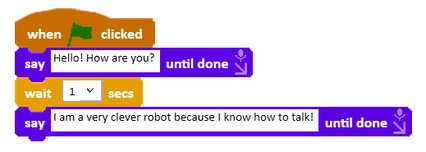
First, we need a `when green flag clicked` block to start our program. Next, we need to go to the Speech palette and find `say until done`, followed by a `wait` from the Control palette.
We now need to go to File, Save As- 'speak'. We can use this very simple program as a skeleton to build up a longer piece of code with speech. In task 1 we will write a paragraph of speech about ourselves. If we type our own name or the name of our school or favourite football team Ohbot may not be able to say them correctly! Please don't worry about this, Ohbot's speech is generated using a program that translates the letters into sounds, it doesn't have your knowledge of how to pronounce words that don't follow the rules!
Top Tip - Try duplicating scripts. How? (Right click the mouse on an instruction to copy a sequence of code).
Activities
Can you write your own code to make Ohbot speak? Write a paragraph of code about yourself. E.g. my name is…….. , I am ………years old, my hobbies are ……………. etc. Keep each sentence as one line of code and remember to have a wait after each sentence.
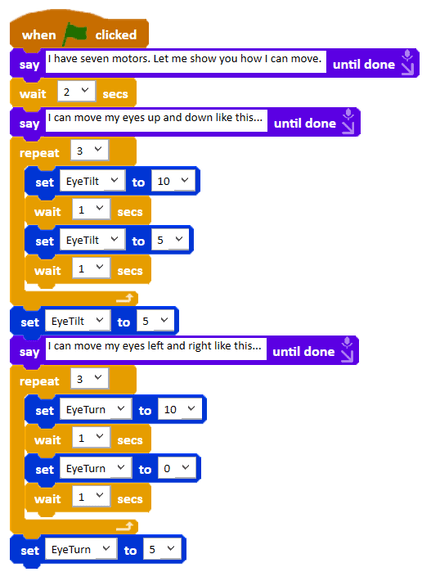
Can you write some code to make Ohbot speak and move? Just like Welcome2. E.g. I can move my eyes up and down like this. How many motors does Ohbot have? (7). You need 7 parts to your code.
Extension
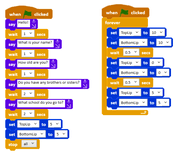
Ask children to open the program called 'speak' that they wrote at the start of the lesson. Try to write an additional code sequence (to accompany the speech) to make Ohbot's top or bottom lip move up and down while it is speaking?
Plenary
Look at examples of the children's coding.
Questions:
- Were they successful?
- Did they need to debug their code?
- How did you find today's lesson? (Thumbs up, down, middle).
Key Points
- Ohbot can be programmed to speak using the `say [text] until done` block from the Speech palette.
- Ensure speakers or headphones are connected to hear Ohbot.
- Use `wait` blocks (Control palette) after `say` blocks to control timing, especially between sentences.
- Ohbot translates text to speech phonetically; complex or non-standard words might not be pronounced perfectly.
- Save your speech programs using File > Save As.
- You can combine speech blocks with motion blocks to make Ohbot speak and move.
- Right-click on blocks or scripts to duplicate them, saving time.
- For the extension, you can make Ohbot's lips move while it speaks by adding a separate script for lip movement (using `when green flag clicked`).
Need Help?
If you're stuck on any part of this lesson, check out these resources: