Get Started with Picoh
Picoh is designed, engineered and manufactured in the UK by Ohbot Ltd. Halliday's Mill, London Road, Chalford, Gloucestershire. For more about Picoh visit: www.ohbot.co.uk
Picoh is a registered Trademark of Ohbot Ltd. All parts are RoHS compliant. Support for Picoh is available from: support@ohbot.co.uk .
Human Safety
- Use by children is for ages 7+ under adult supervision.
- Any external power supply used with the product shall comply with relevant regulations and standards applicable to the country of intended use.
- This product should be operated in a well ventilated environment and, if used inside a case, the case should provide adequate ventilation.
- This product should be placed on a stable, flat, non-conductive surface in use and should not be contacted by conductive items.
- All peripherals used with the product should comply with relevant standards for the country of use and be marked accordingly to ensure that safety and performance requirements are met.
- Where peripherals are connected that do not include the cable or connector, the cable or connector used must offer adequate insulation and operation in order that the requirements of the relevant performance and safety requirements are met.
Robot Safety
- Do not expose it to water, moisture, or place on a conductive surface whilst in operation.
- Do not impede the product's motors from moving whilst they are powered to move.
- Do not expose it to heat from any source; the product is designed for reliable operation at normal ambient room temperatures.
- Take care whilst handling to avoid mechanical or electrical damage to the printed circuit board and connectors.
- Avoid handling the printed circuit board while it is powered. Only handle by the edges to minimise the risk of electrostatic discharge.
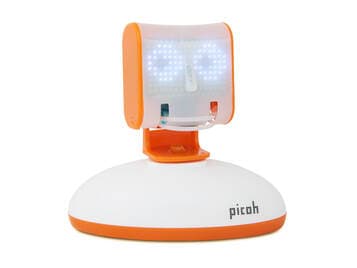
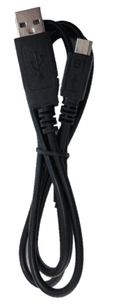
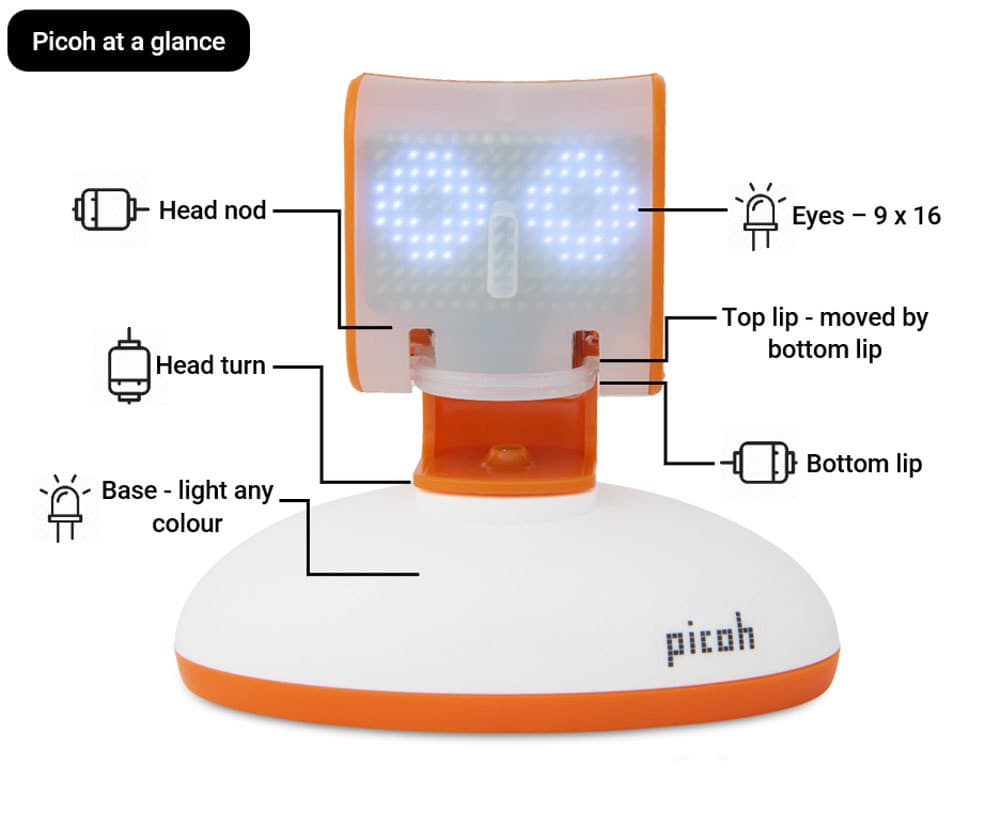
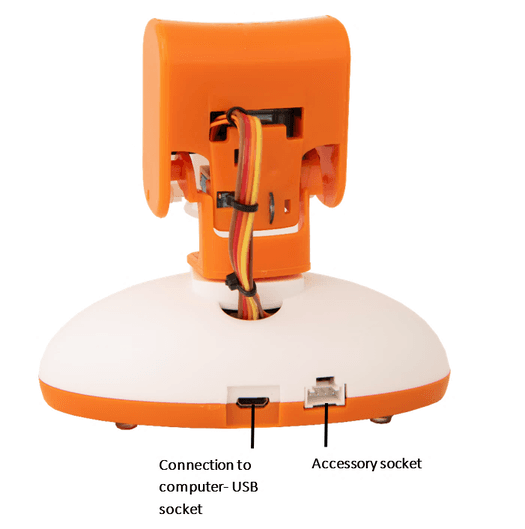
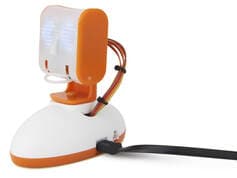
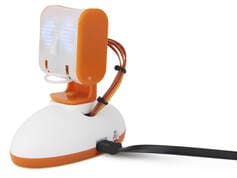
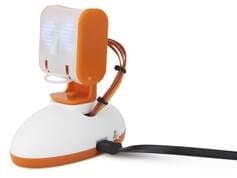
Lucky you, you've got your hands on a Picoh! Take a look at the diagram opposite to see Picoh's outputs: Three servo motors make Picoh's head turn, tilt and lip move. LED matrix eyes, change Picoh's eye shape, pupil position and blink. speech - Picoh speaks typed text, and can use different voices. Sound is heard through your computer speakers; Picoh has no built in speaker. and coloured light – yep, its base lights up A couple of things before you dive in... First, Picoh does nothing straight out of the box. It needs to be (and stay) connected to a computer to work. Use the supplied USB cable to connect between the socket on the back of Picoh and your computer. Secondly Picoh isn't one of these robots that has a pre-programmed 'personality'. Excitingly it is a fully programmable robot; its personality and behaviour is completely up to you. All of Picoh's outputs can be precisely controlled by scripting programs using either graphical blocks or text. Next is to decide how you would like to program Picoh...
Picoh app
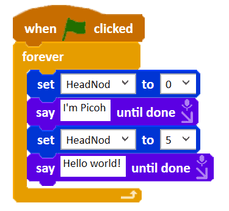
- Carefully designed to work like Scratch and recommended for anyone new to programming. It features a simulation of Picoh so can be used without a robot.
- Available for: Windows
Scratch
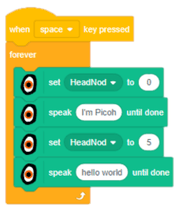
- Scratch can be used to program Picohs on a wider range of operating systems than the Picoh app. It has more limited functionality than the Picoh app.
- Available for: Windows macOS Chromebook Raspberry Pi
Python
- Python is a text based programming language, suited to more experienced programmers.
- Available for: Windows macOS Raspberry Pi
Using the Ohbot app (on Windows PC)
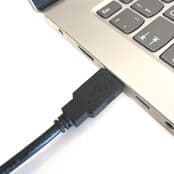
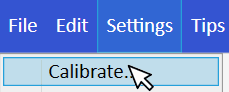
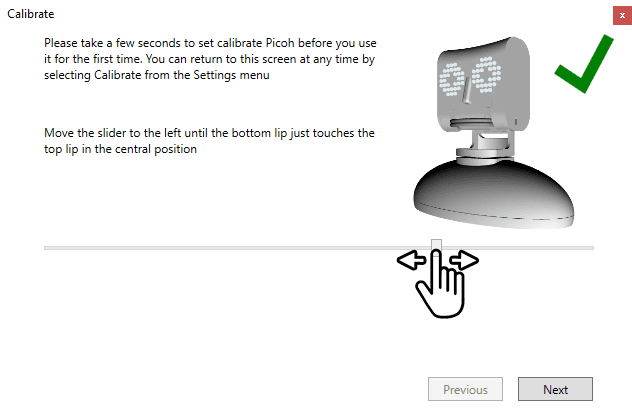
1. Install the app. Click below to install the app straight from the Windows Store. If you cannot install from the Store, an MSI installer is also available. It is not signed yet, so Windows may warn you: click More info, then Run anyway. If you already have an MSI installation, uninstall it first from Add or remove programs. Download the MSI installer If you are using an earlier version of Ohbot including v1.1, 1.2, 1.3 or 2.0, please follow the legacy software install instructions before progressing to step 2 below. 2. Connect the small USB plug on the cable to the USB socket on the back of Picoh. And connect the large USB plug on other end of the cable to a Windows PC. 3. Click on the Start menu and find the Ohbot app. 5. Calibrate This sets up Picoh's motors so that its head and lips align correctly. To Calibrate in the Ohbot app go to the Settings menu. Select Calibrate. There are four steps. For each you need to adjust the slider handle in each until it matches the position for the lips or head shown in the picture. If you always use Picoh on the same computer you will only need to callibrate the first time you use Picoh. 6. Check Picoh's health: On the file menu select Open Select the Welcome program, click Open Click the Green Flag icon Move the mouse and check that Picoh's head tilts and turns and its pupils move as you move the mouse. Press the Space key and check you can hear Picoh speak, Picoh's bottom lip should move at the same time. If Picoh doesn't work please contact us for support on: support@ohbot.co.uk .

Using Scratch (on Windows PC, macOS and Chromebook)
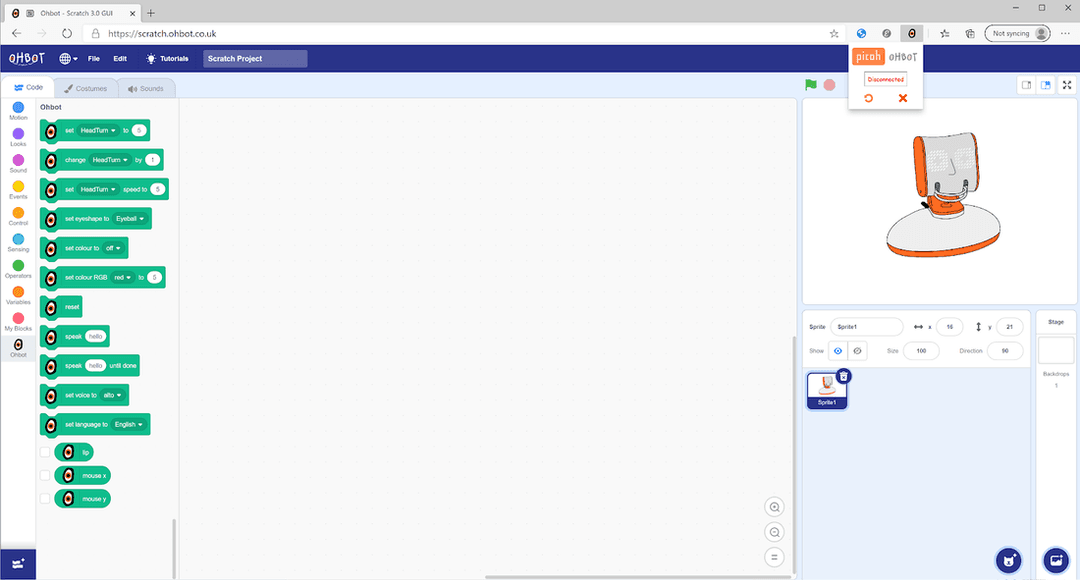
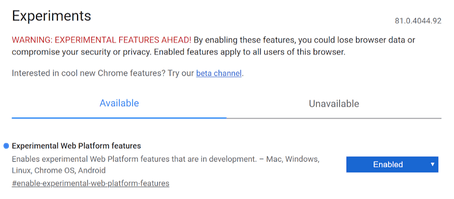
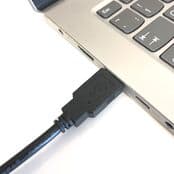
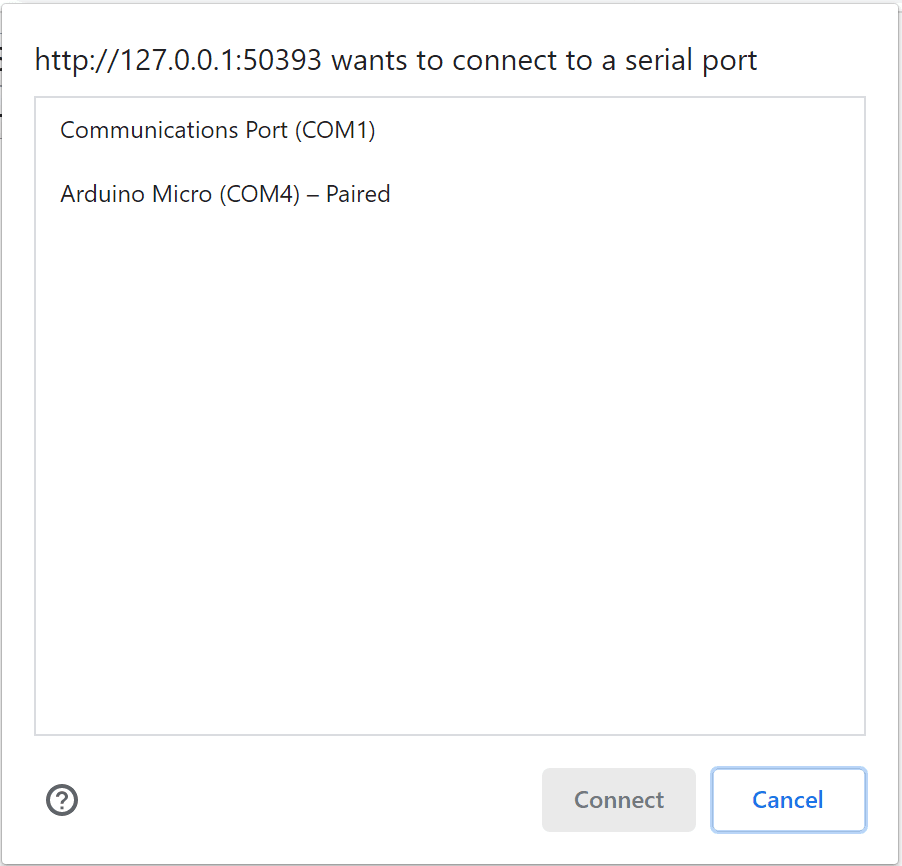
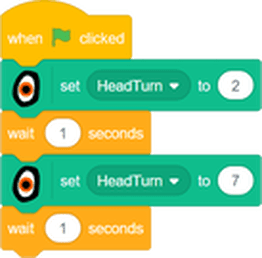
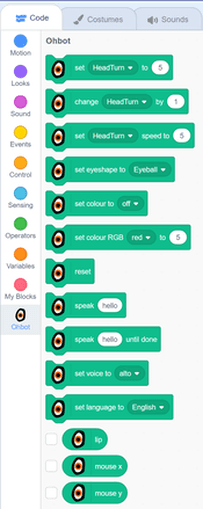
You will need Google Chrome or the latest version of Microsoft Edge browser. 1. Install the OhBridge Chrome plugin: Click on this link. Click 'Add to Chrome' 'Add Extension' 2. Enable Experimental Web Platform features. (June 2023: with the latest version of Chrome/Edge you may not need this) Type the following into the Chrome/Edge address bar: `chrome://flags/#enable-experimental-web-platform-features` Next to 'Experimental Web Platform Features' change the menu option to 'Enabled' Click Relaunch to restart Chrome or Edge 3. Connect Picoh via USB. Connect the large USB plug on end of the cable to your PC. Connect the small USB plug on the USB cable to the socket on the back of Picoh. 4. Go to: scratch.ohbot.co.uk Click anywhere on the page. A popup should come up, Select the port (Should be 'Arduino Micro' or 'USB Serial Device'.) Click connect and Picoh should reset (if it is not in that position already). 5. Write and run a simple test program. You can find the Picoh specific blocks in the Ohbot Extension menu at the right of the page.
Using Python (on Windows PC, MacOS and Raspberry Pi)
With Python, you can write text-based code to move Picoh's motors and control its eyes and speech. Below are setup instructions for each OS. Our open source Picoh for Python library works with Windows, macOS or Raspberry Pi (Linux). The tools folder includes Python tools for calibrating your Picoh, designing eye shapes and creating databases of speech. The library includes an examples folder to get you started, and there is also a guide explaining key concepts. Guide to Programming Picoh in Python (PDF) Email us with any questions: support@ohbot.co.uk
Setup for Windows
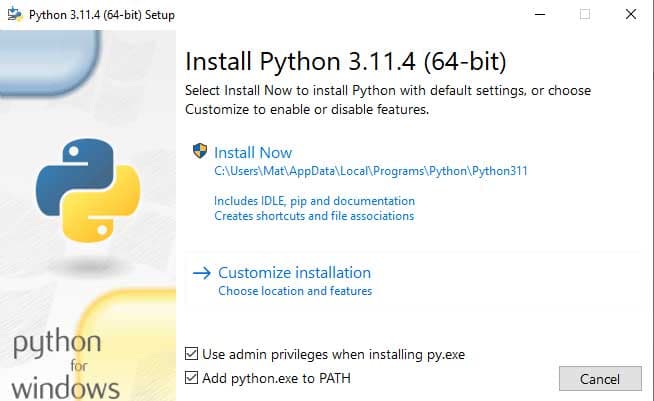
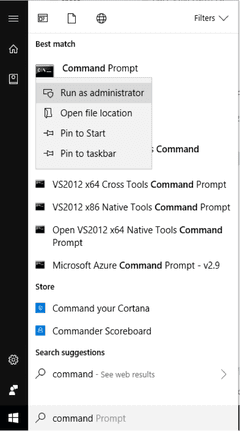
1. Download a Python installer from here. We have tested the Ohbot library with Python versions 3.6 to 3.11. Please always install Python from the approved Python website: www.python.org 2. Tick the option to Add Python to PATH then click on Install Now. Once install is complete type “Command” into the Windows search box. Right click on Command Prompt and select Run as administrator. This will open a command prompt window. 3. Type the following command to install the Picoh library:
bashpip install picoh
If you see errors here then try using the version of pip that is specific to your version of Python. For example, for Python3.11 try:
bashpip3.11 install picoh
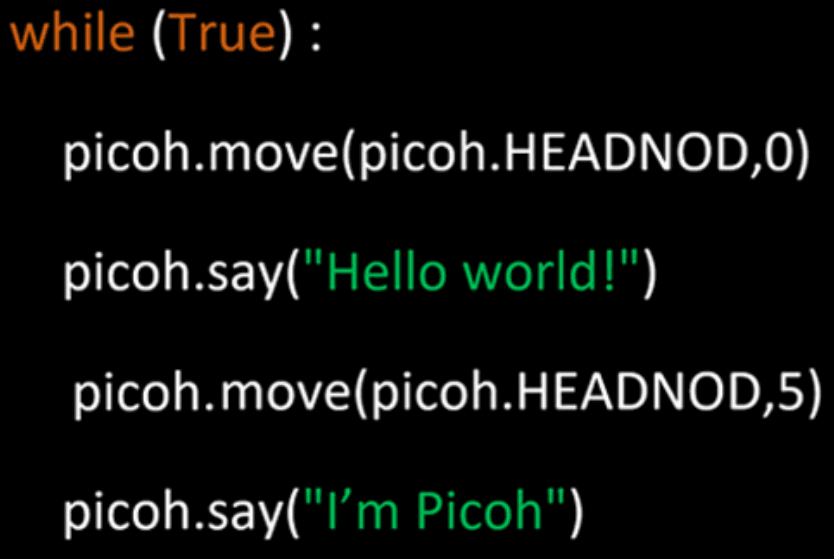
4. Connect the large USB plug to your computer. The plug provides Picoh with a signal and power. 5. Connect the small USB plug on the USB cable to the socket on the back of Picoh. 6. Go to the Windows Start Menu and run the IDLE application (or your preferred Python editor). Inside IDLE Select 'New File' from the File menu. Go to the Picoh Python examples on GitHub, copy the code for `helloWorldPicoh.py`, and paste it into the new Python window. (Example link: github.com/ohbot/picoh-python - check actual repo) Select 'Run Module' from the Run menu (or press F5). Picoh should speak and move. With some versions of Python you may need to install extra Python libraries. For example, when running with Python 3.11 we saw error messages about missing lxml and comtypes and we fixed these by going back to the command window and typing:
bashpip3.11 install lxml
pip3.11 install comtypes
More example programs can be found here. More example programs can be found on the GitHub repository.
Setup for Raspberry Pi
If you don't have Python 3 or pip3 (the Python package manager) installed, open a Terminal and execute the following commands, one line at a time:
bashsudo apt-get update
sudo apt-get install python3 python3-pip
Picoh requires some libraries to be installed. Execute the following commands in the terminal to install `lxml`, `festival`, and finally the `picoh` package:
bashsudo apt-get install python3-lxml festival
sudo pip3 install picoh
Picoh is tested with Python 3 running on a Raspberry Pi 3 Model B or newer. Hardware Required: Raspberry Pi Picoh USB Cable (possibly a Y-cable or powered hub if Pi power is insufficient). Setup: 1. Connect the large USB plug to a USB port on your Pi. This provides signal and power. 2. Connect the small USB plug to the socket on the back of Picoh. Running Python Programs: Open the Thonny IDE application (usually pre-installed) or use the terminal. Inside Thonny, create a New file. Go to the Picoh Python examples on GitHub (`helloWorldPicoh.py`), copy the code, and paste it into the new Python window. (Example link: github.com/ohbot/picoh-python - check actual repo) Select Run (the green play button). Picoh should speak (through the Pi's audio output) and move. More example programs can be found on the GitHub repository.
Setup for Mac
Install the latest version of Python (3.6+) if you don't have it: python.org Open the Terminal app (you can find it using Spotlight search). To install the Picoh library, run the following in the terminal (you might need `sudo`):
bashsudo pip3 install picoh
To upgrade to the latest version of the library run the following in the console:
bashsudo pip3 install picoh --upgrade
Hardware Required: Mac running macOS Picoh USB Cable Setup: 1. Connect the large USB plug to your Mac. 2. Connect the small USB plug to the socket on the back of Picoh. Running Python Programs: Open the IDLE application (installed with Python) or your preferred Python editor. Inside IDLE, select 'New File' from the File menu. Go to the Picoh Python examples on GitHub (`helloWorldPicoh.py`), copy the code, and paste it into the new Python window. (Example link: github.com/ohbot/picoh-python - check actual repo) Select 'Run Module' from the Run menu. Picoh should speak (through the Mac's speakers) and move. More example programs can be found on the GitHub repository.
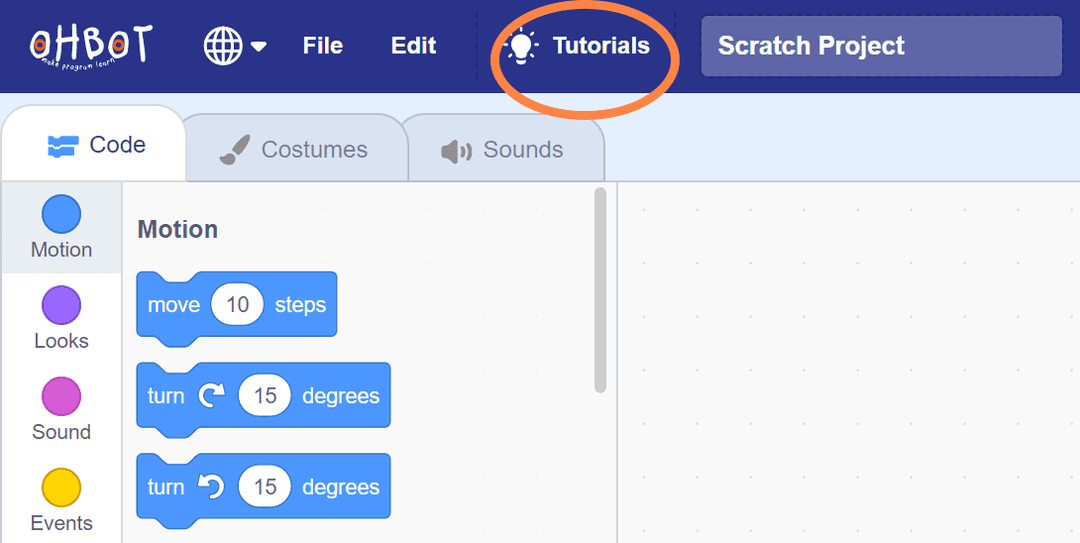
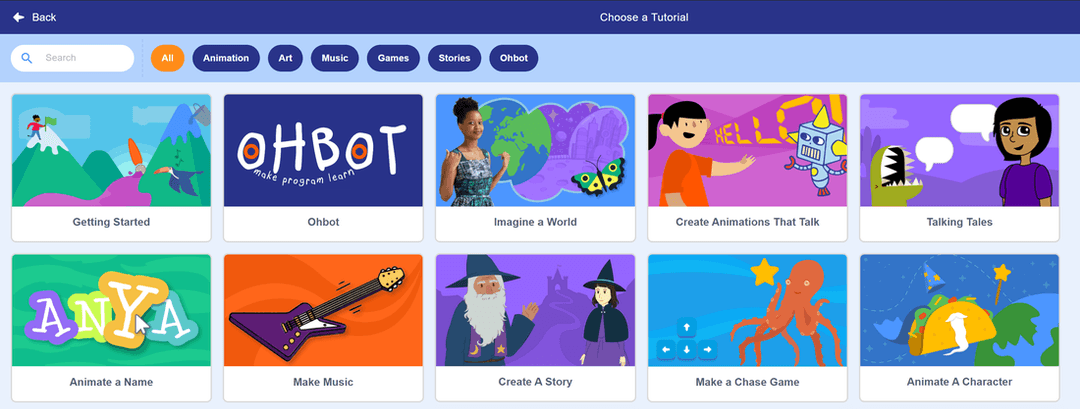
For some tips on getting started with Picoh in Scratch check out the Ohbot tutorial from the tutorials page on: scratch.ohbot.co.uk