Get Started with Ohbot Assembled
Human Safety
- Use by children is for ages 7+ under adult supervision.
- Any external power supply used with the product shall comply with relevant regulations and standards applicable to the country of intended use.
- This product should be operated in a well ventilated environment and, if used inside a case, the case should provide adequate ventilation.
- This product should be placed on a stable, flat, non-conductive surface in use and should not be contacted by conductive items.
- All peripherals used with the product should comply with relevant standards for the country of use and be marked accordingly to ensure that safety and performance requirements are met.
- Where peripherals are connected that do not include the cable or connector, the cable or connector used must offer adequate insulation and operation in order that the requirements of the relevant performance and safety requirements are met.
Robot Safety
- Do not expose the robot to water, moisture, or conductive surfaces while operating.
- Do not impede the robot's motors from moving while powered.
- Avoid exposing it to heat from any source; use at normal ambient room temperatures.
- Take care while handling to avoid mechanical or electrical damage to the board or connectors.
- Avoid handling the board while powered; only handle by the edges to minimize electrostatic discharge.
Details
- Ohbot is designed, engineered, and manufactured in the UK by Ohbot Ltd., Halliday's Mill, London Road, Chalford, Gloucestershire.
- Ohbot® is a registered trademark of Ohbot Ltd. All parts are RoHS compliant.
- Support is available from support@ohbot.co.uk.
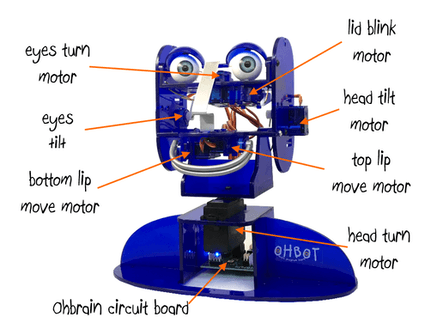
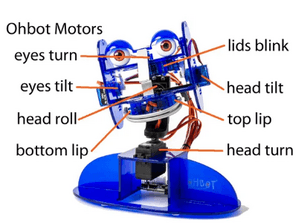
You'll have an Ohbot v2.1 (with seven motors) or an Ohbot v2.2 (with eight motors). Below are examples of each model.
Ohbot v2.1

Ohbot v2.2
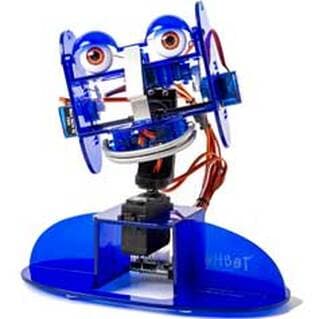
Ohbot is a programmable robot head. Ohbot 2.1 has seven motors and Ohbot 2.2 has eight motors.
Ohbots 'sense' spoken words and recognise faces and movements. They can be programmed to 'think' using either a graphical block programming language or Python textual language.
Ohbots 'act' using motors and sound. They can be made to look around, blink and smile. Each servo can be set to a precise position and they can speak by converting words into sound. Ohbot's speech comes from speakers or headphones attached to a computer.
Ohbots have to stay connected to a computer via a USB cable to work.
Ohbot v2.1
Ohbot v2.2
Ohbot can be programmed using one of three approaches:
Ohbot App
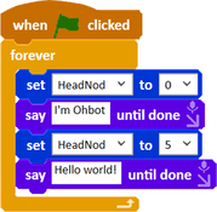
The Ohbot App (Windows), which is designed like Scratch and recommended for beginners. It features a built-in Ohbot simulator.
Scratch
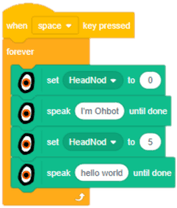
Scratch (Windows, macOS, Chromebook), using a custom Ohbot extension that gives you motor, speech, and sensor blocks.
Python
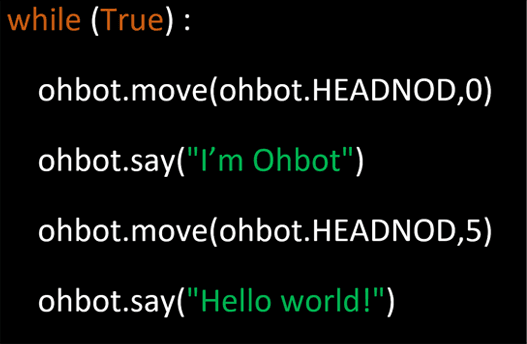
Python (Windows, macOS, Raspberry Pi), a text-based programming language for more advanced users.
Availability
- Ohbot App: Windows only
- Scratch: Windows, macOS, Chromebook
- Python: Windows, macOS, Raspberry Pi
Using the Ohbot app (on Windows PC)
1. Install the app. If you have a modern Ohbot, click the Microsoft Store link (usually provided by Ohbot Ltd.). For older v1.1-2.0 Ohbots, follow the separate instructions at: ohbot.co.uk/ohbot-for-windows
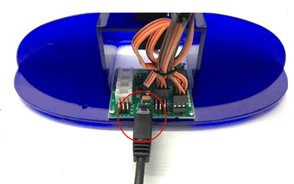
2. Connect the small USB plug on the USB Y cable to the socket on the Ohbrain circuit board.
Ohbrain connection
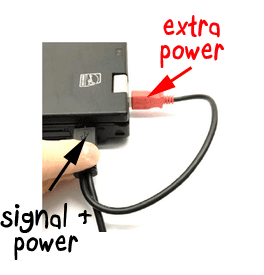
3. Connect the two large USB plugs to your computer. The black plug provides signal and power; the red plug provides extra power if needed (connect this one second, if required).
USB connection
4. Open the Start menu, find the Ohbot app, and launch it.
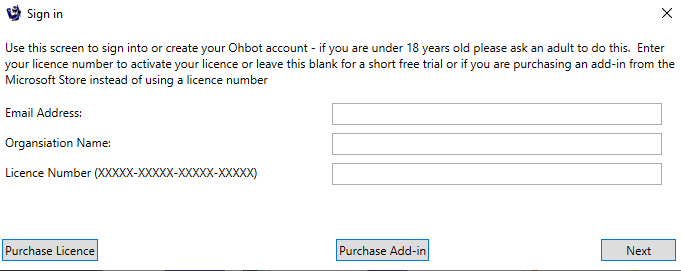
5. Activate Licence pop-up. This should be completed by someone over 18. Enter your email address, organisation name and your licence number. If you leave the email address blank the app will run in Demo mode. If you fill in the email and leave the licence number blank you will have a short trial period and then the app will run in Restricted mode.
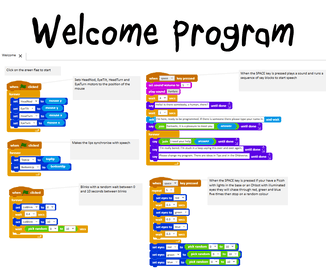
6. A 'Welcome' program will open by default. Click the Green Flag icon. Move your mouse to see the head and eyeballs respond. Press the Space key to hear speech. If you have illuminated eyes, they should also cycle colors.
Using Scratch (on Windows PC, macOS, and Chromebook)
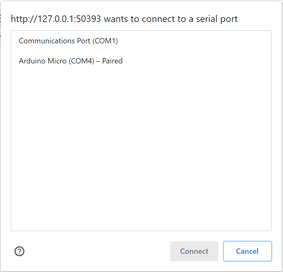
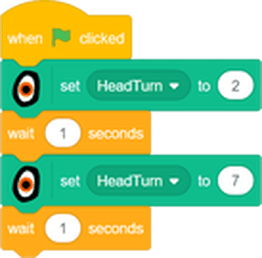
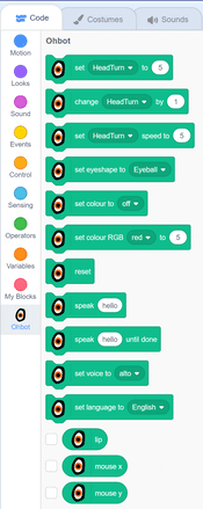
1. You'll need Google Chrome or Microsoft Edge. Install the OhBridge Chrome plugin by visiting the Chrome Web Store and searching 'OhBridge', then click 'Add to Chrome.' 2. Enable Experimental Web Platform features in Chrome or Edge by typing the following into the address bar, switching the flag to 'Enabled,' and relaunching the browser: `chrome://flags/#enable-experimental-web-platform-features` 3. Connect Ohbot: attach the small USB plug to the Ohbrain board, and plug the black and red USB plugs into your computer or a USB power adapter (red provides extra power). 4. In Chrome/Edge, go to: https://scratch.ohbot.co.uk/ Click once anywhere on the page; a connection popup should appear. Select the correct port (often labeled 'Arduino Micro' or 'USB Serial Device') and click connect. Ohbot will reset (move to its central position). You can now use the Ohbot Scratch blocks found in the extension panel (usually bottom-left). Write a simple test block sequence and click the green flag to run.
Using Python (on Windows PC, macOS, and Raspberry Pi)
With Python, you can write text-based code to move Ohbot's motors, sense inputs, and speak. Below are setup instructions for each OS.
Setup for Windows
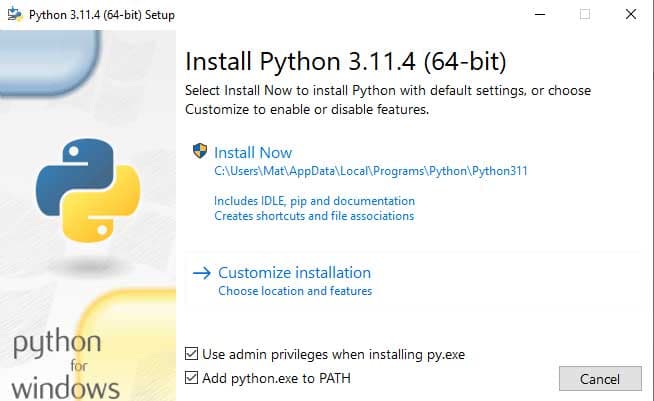
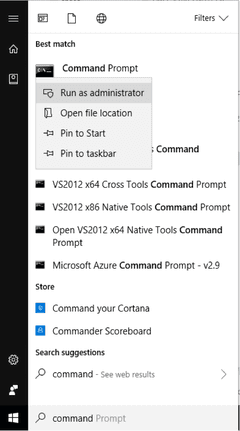
1. Download and install a supported Python version (e.g., 3.6 to 3.11) from the official Python website: python.org During installation, ensure you check the option similar to 'Add Python to PATH', then click Install Now. You might need to reboot your computer afterward. 2. Open a command prompt *as Administrator*. Type the following command to install the Ohbot library (use the specific pip version like `pip3.11` if `pip` doesn't work):
bashpip install ohbot
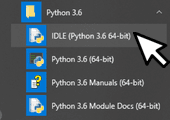
3. Connect Ohbot: plug the small USB connector into the Ohbrain board, and plug both the black and red USB connectors into your computer (the red plug provides extra power and should be connected second if needed). 4. Open IDLE (Python's default editor, found in the Start Menu) or your preferred Python editor. Create a new file (.py). Paste a sample program, for example, `helloworldohbot.py` from the Ohbot Python GitHub repository: github.com/ohbot/ohbot-python Run the program (usually F5 in IDLE). Ohbot should speak and move. If you encounter errors about missing libraries like `lxml` or `comtypes`, install them using pip in the command prompt:
bashpip install lxml
pip install comtypes
Setup for Raspberry Pi
Ohbot is tested with Python 3 on Raspberry Pi OS (previously Raspbian), typically on a Raspberry Pi 3 Model B or newer. 1. Ensure Python 3 and pip (Python's package installer) are installed. Open a Terminal and run:
bashsudo apt-get update
sudo apt-get install python3 python3-pip
2. Install necessary libraries and the Ohbot package:
bashsudo apt-get install python3-lxml festival
sudo pip3 install ohbot
3. Connect Ohbot: Plug the black USB connector into one of the Pi's USB ports. Plug the red USB connector into a separate USB power adapter or another USB port on the Pi (newer Pis might provide enough power from one port, but using separate power for the red plug is often more reliable). 4. Run your Python scripts using `python3 your_script_name.py` or via an editor like Thonny (pre-installed on Raspberry Pi OS).
Setup for Mac
1. Install a supported Python version (e.g., 3.6 or newer) if you don't have one, preferably from the official Python website: python.org 2. Open the Terminal application (you can find it using Spotlight search). 3. Install the Ohbot library using pip3. You might need `sudo` depending on your Python installation:
bashpip3 install ohbot
4. Connect Ohbot: Plug the black USB connector into your Mac. Plug the red USB connector into another USB port or a separate USB power supply for extra power. 5. Open IDLE (installed with Python) or your preferred Python editor, create a new file, and paste/write your Ohbot code. Find sample programs on the Ohbot Python GitHub repository: github.com/ohbot/ohbot-python Run the script to test.
Once set up, you can start programming! Resources vary depending on your chosen method:
For the Ohbot App (Windows), explore features like AI blocks, project ideas, schemes of work, code snippets, and the community forum.
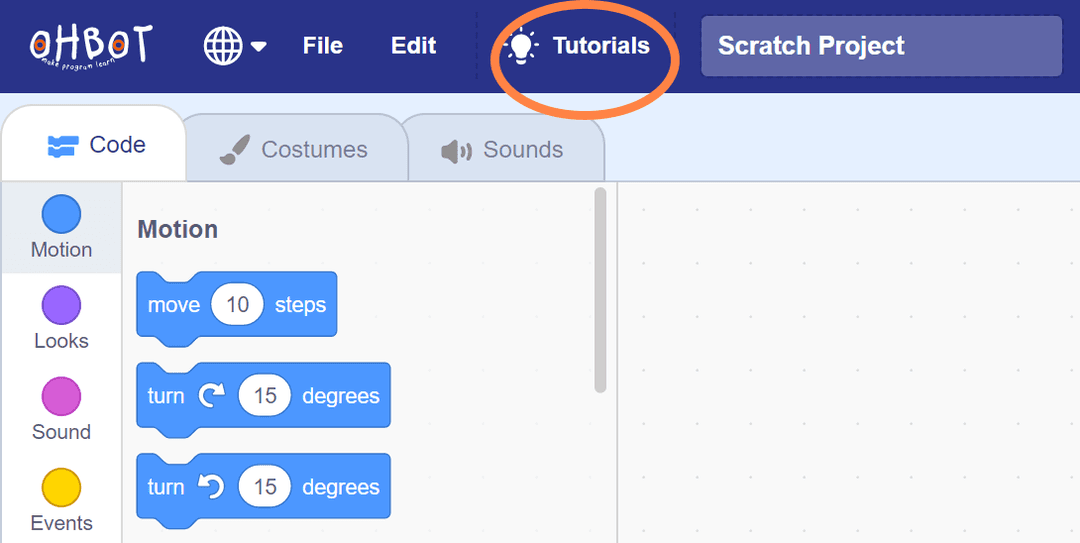
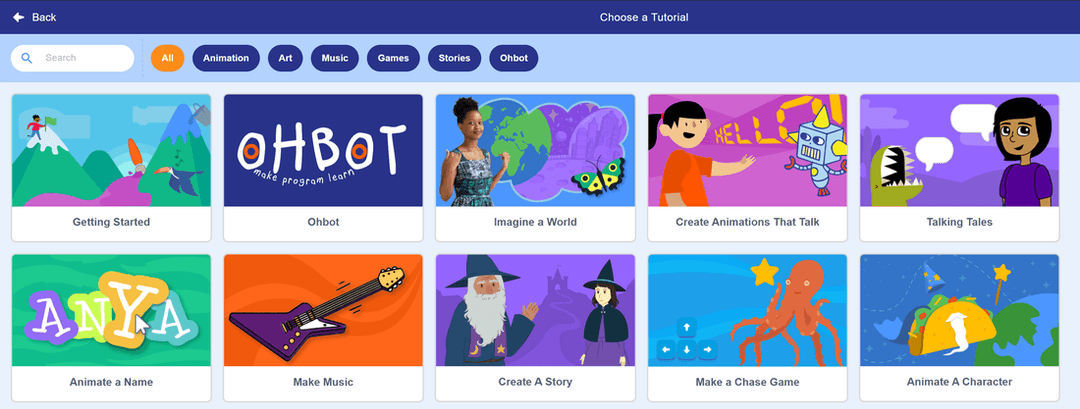
For Scratch, use the built-in tutorials accessible from the Ohbot Scratch website.
For Python, refer to the example programs available in the Ohbot Python repository on GitHub.