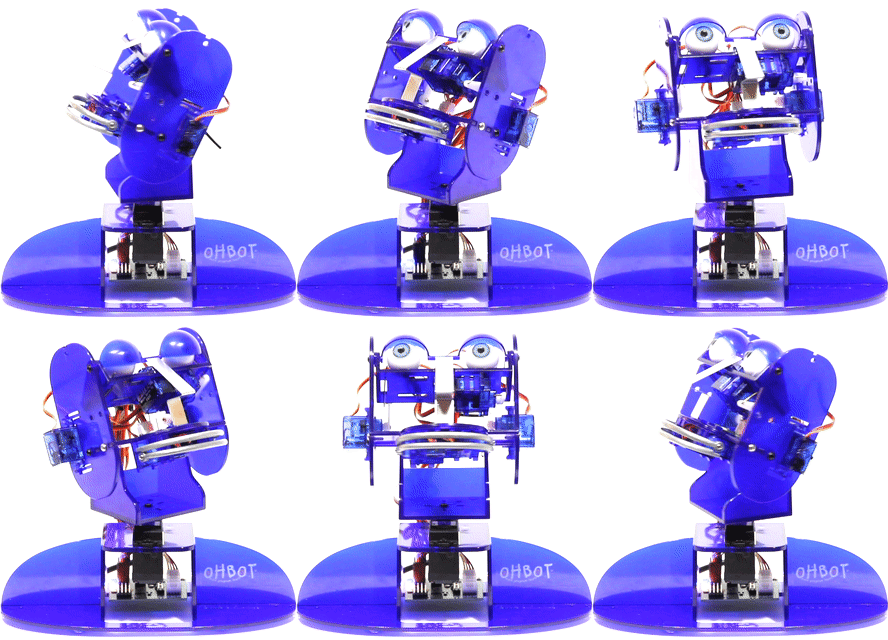
Learning AI with Ohbot and Picoh
Connect your robot to ChatGPT and explore the world of AI
Using Ohbot and Picoh to learn about AI
Connect your Ohbot or Picoh to ChatGPT with a single block, empowering your robot to respond to questions and prompts with the full power of an AI Large Language Model.
If you are using version 2.96 or later of the OhbotApp2 and you are on free trial or you have a licence or add-in, you can use the GPT blocks for free subject to limits on the number of requests and tokens that you use.

Go to Licence from the Help menu in the app to see what your limits are and how much you have used.
Use your own OpenAI account
If you want to use your own OpenAI account for unlimited access to GPT, follow these steps:
Step 1: Create an OpenAI account
First go to the Open AI page and create an account: https://platform.openai.com/signup
Step 2: Add credit to your account
Since March 2024 OpenAI has required that you prefund your account rather than paying at the end of the month. Go to your openai billing page and add credit: https://platform.openai.com/settings/organization/billing/overview
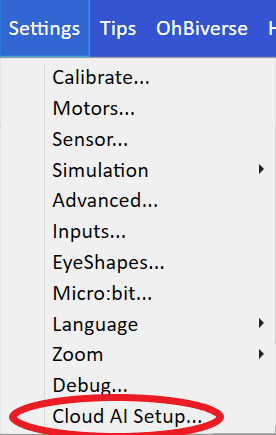
Step 4: Add your API key
Copy your openai api key from https://platform.openai.com/account/api-keys and paste it into the Key box on the Setup page:
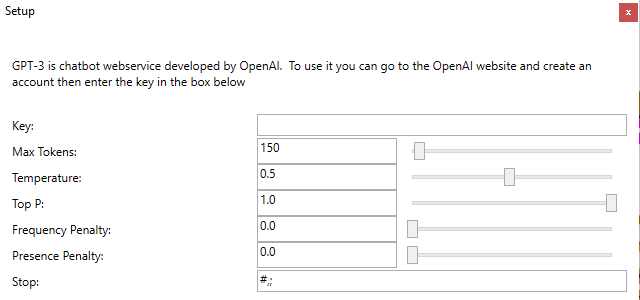
You can leave the other boxes set to their defaults.
Getting started with some blocks
Step 1: Create a basic program
Drag a when space key pressed onto the canvas from the Events palette, a say until done block from the Speech palette and a gpt block from the AI palette. Type some words into the gpt box:

Press the space key and Ohbot will greet you. You can try out different phrases for your Ohbot to respond to.
Step 2: Create a voice-responsive robot
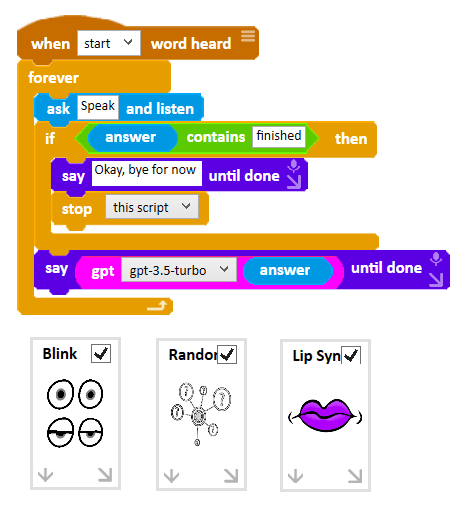
Here's an example program that gives you a fully operational blinking and lip synching robot that answers any spoken question using GPT:
Step 3: Add prompts for context
Your program can also add a prompt in front of the question that you ask in order to give clues to GPT about how to respond. Here's an example:

You can see that in the prompt we have tried to stop Florence Nightingale from giving "her" views about mobile phones and computers but the results are mixed. You may be able to improve this by rephrasing the prompt or it may be a useful discussion point to explore the current limitations of AI.
Using vision capabilities
If you have a webcam or Ohbot camera available and select gpt-4o-vision in the gpt dropdown you can send the current image to GPT:

Using image URLs
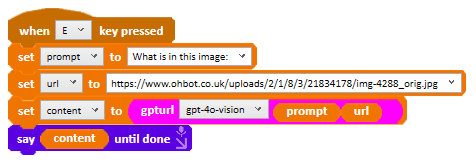
You can also use the gpturl block to send an image url to GPT:
Advanced Features
Conversation Memory
From version 2.96 onwards you can also use the gptassistant block to hold a conversation with GPT with it remembering what you've told it. This is fully explained in our online help.
Try the sample programs
Go to Open from the File menu in the app and load the program called AIDemo. This includes some of the examples listed above and adds some interesting movement for Ohbot. You can also have a look at the downloadable AI sample programs on Ohbiverse.
Key Points
- Connect Ohbot or Picoh to ChatGPT with a single block
- Free usage with OhbotApp2 v2.96 or later (with limits)
- Use your own OpenAI account for unlimited access
- Create voice-responsive robots that answer questions
- Use prompts to guide GPT responses
- Vision capabilities with webcam or Ohbot camera
Need Help?
If you're stuck on any part of this guide, don't worry! Check out these resources: