Install OhbotApp1 for Windows
The legacy Ohbot software, for older robots.
If you have an Ohbot 2, an Ohbot 2.1 or a Picoh we recommend OhbotApp2 instead: it has many new features and is actively supported. If you have an older Ohbot, contact us and we'll see what we can do to upgrade it.
Go to OhbotApp2The legacy OhbotApp1 requires a computer running Microsoft Windows 10 or 11.
Identify which version of Ohbot you have by looking for the version number on the robot's shoulder, then follow the matching section below.
If you have an older version of the Ohbot software installed and want the latest, uninstall it first by right-clicking its icon on the Start menu and selecting Uninstall.
If you are installing across a number of computers on a network, it may help to read the Managed Installation document on our Technical Notes page.
Technical Notes| Version on the shoulder | What to follow |
|---|---|
| 2.1 | Follow the Ohbot v2.1 and Picoh section |
| 2.0 | Follow the Ohbot v2 section |
| 1.0, 1.1 or 1.3 | Follow the Ohbot v1 section |
Ohbot v2.1 and Picoh
On Windows 11, or Windows 10 Anniversary Edition and later, install straight from the Windows Store.
Install the Ohbot software from the Microsoft Store.
Open in the Microsoft StoreIf you can't install the app, an MSI is also available, though it isn't signed yet.
Download the MSIIf you see a Dropbox login page, click 'No, thanks. Continue to view' at the bottom of the screen, then click Download and choose Direct download.
Run the setup.msi file. Some browsers offer a Run option; otherwise open your Downloads folder and double-click it.
If you already have an MSI installation, uninstall it first: type 'uninstall' into the Windows search box, choose Add or remove programs, scroll to Picoh, click it and select Uninstall.
If you see a screen titled 'Windows protected your PC', click More info and then, if you choose to, Run anyway.
Follow the installation wizard. Once installed, run the app from your Start menu.
Ohbot v2
Two applications are needed to get Ohbot v2 working.
1. Arduino controller board driver. This only needs installing once.
Download CH341SER.zipIn Windows Explorer, navigate to the download folder, right-click CH341SER.ZIP and select Extract All. In the extracted folder, double-click SETUP.EXE and follow the instructions.
2. Ohbot Software. Follow the Ohbot v2.1 instructions above. Once the Ohbot program is running, go to Settings > Advanced and set Ohbot version to Version2, then go to Settings > Motors. Enter 'einstein' as the password, select File > Open, choose MotorDefinitionsv20.omd and select Open. Shut down and restart the Ohbot program.
Ohbot v1
Two applications are needed to get Ohbot v1 working.
1. Pololu Maestro Software. This is needed for the servo board, but once installed it only needs running once during first set up.
Download Pololu MaestroRun setup, then connect Ohbot and power it up, taking care to get the power polarity the right way around — see the making instructions for help with this.
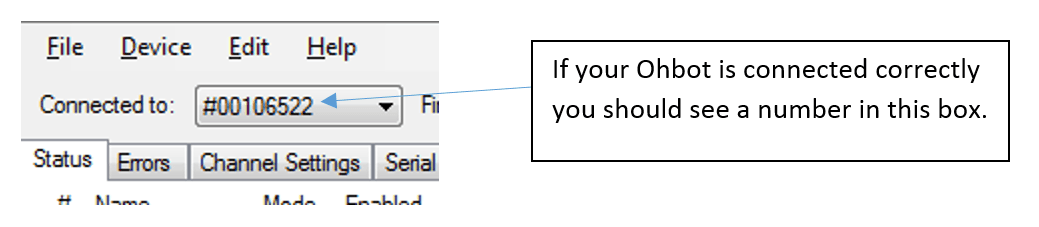
Start the Pololu Maestro Control Centre software. If Ohbot is not detected, click the drop-down for the 'Connected to:' box and select the device whose number starts with #.
On the 'Serial Settings' tab, ensure 'UART, fixed baud rate: 9600' is selected, as shown below.
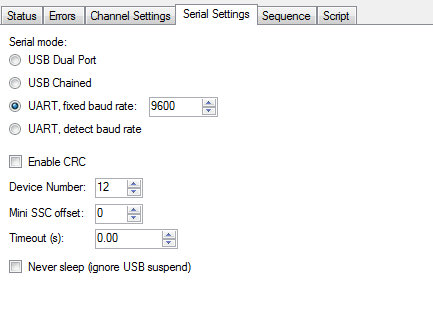
Click Apply Settings, then close the Pololu software. You will not need to run it again to use Ohbot.
2. Ohbot Software. Follow the Ohbot v2.1 instructions above. Once the Ohbot program is running, go to Settings > Advanced and set Ohbot version to Version1, then go to Settings > Motors. Enter 'einstein' as the password, select File > Open, choose MotorDefinitionsv10.omd and select Open. Shut down and restart the Ohbot program.