Learning Intention
- I can program a robot to move when keys are pressed
Introduction
How do you control players when playing computer games? One way is using a computer keyboard, with different keys triggering the game sprite to carry out different movements such as jumping. We are going to write programs to make Picoh carry out different sequences of movements when different keys are pressed.
Teacher Input
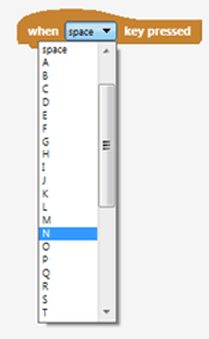
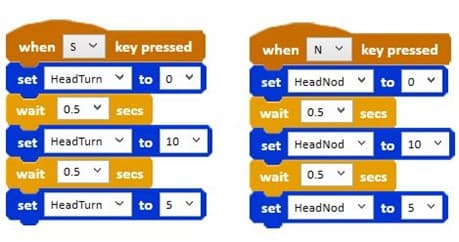
Let's make Picoh nod once whenever the N key is pressed. First we start with an event instruction. In the last lesson we used the `when green flag clicked` event block to start our sequence. This time we are going to use `when [ ] key pressed`. Use the drop-down menu to select N as the trigger key.
The scripts will be similar to those created in the previous lesson. Use 10 and 0 for maximum movements in either direction and 5 to bring Picoh back to the middle point. Work through the 'N for nod' instructions with the children, then ask them to write the code for 'S for shake' by themselves using the N for nod code as a skeleton. File, Save As - keyboardNandS
Activities
Can you write some code to use the keyboard to control my pupils? U to look up, down then centre. L to look left, right then centre.
Extension
Can you write some code to use the keyboard to control my lips? Up arrow key to smile for one second, down arrow key to frown for one second.
Plenary
When we use the keyboard to control Picoh, Picoh will run a sequence only if a key is being pressed. Although this is often a good way for a system to work (such as the doors on a train, which might require a human to check it is safe for the train to leave), sometimes we want the robot to carry out actions over and over again without needing a human to start it each time. Have a look at the code blocks to see if you can find a way of performing movements again and again without needing a human to press the key. We need to use the `repeat` instruction from the Control palette — next week we learn to write code using repeat.
Key Points
- `when [ ] key pressed` (Events palette) starts a sequence from the keyboard.
- The drop-down menu selects which key triggers the sequence.
- A working script can be reused as a skeleton for a similar one.
- Keyboard-triggered code only runs when a human presses the key.
- `repeat` (Control palette) is the way to run movements again and again on their own.
Need Help?
If you're stuck on any part of this lesson, check out these resources: