Learning Intention
- I can program a robot to carry out a sequence of movements
Introduction
We are going to be using a robot called Picoh. Picoh can sense the world using input devices including a keyboard, mouse, microphone or camera connected to a computer. It can 'think' using a program running on the computer. It can act using motors and a speaker connected to a computer. Ask children to identify how many ways Picoh can move. Gather children's ideas about what useful jobs a robot head might be able to do. We are going to start by creating a program to make Picoh carry out a sequence of movements.
Teacher Input
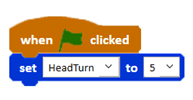
Display a `set HeadTurn to 5` instruction on the screen. Explain that when the program runs this instruction it will set the motor to a position that corresponds with the number in the second box, in this case 5. With all Picoh motors, 10 is the furthest in one direction and 0 is the furthest in the other direction; 5 will always bring Picoh back to the middle position. Ask children to act out `set HeadTurn to 10`, `set HeadTurn to 0` and `set HeadTurn to 5` — the teacher says the commands, the children are human robots. Ask children to suggest what they think would happen if they entered a value greater than 10 or less than 0. How about a decimal value?
Open the Picoh application. Children use a `when green flag clicked` event block and a `set HeadTurn to` instruction to explore how changing the value alters the position of Picoh's head when the green flag is clicked.
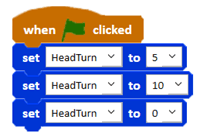
Next, we will work together to write the code to make Picoh carry out a sequence of movements to shake its head. First we need a `when green flag clicked` instruction from the Events palette to start the sequence, then a sequence of `set HeadTurn to` instructions from the Motion palette. Encourage children to think about why a sequence of instructions results in Picoh's motors moving to the last position without going through the preceding ones. Computers carry out instructions almost unimaginably quickly — the three blocks will run in around 0.000000003 of a second. Even if Picoh's motors could move that fast, which they can't, your eye probably wouldn't perceive the movement. One way of slowing the movement down is to add an instruction that makes the program wait between each instruction.
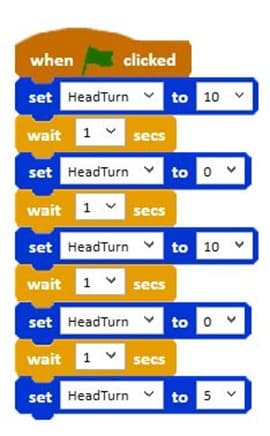
`wait` can be found on the Control palette and will give Picoh's motors time to move to each position before the next position overrides it. Once the code is complete, click the green flag to test it. We may need to debug the code if it is not working correctly. Encourage children to review what Picoh is doing compared to what they wanted it to do, identify the instructions causing this, and identify a possible solution to try before running again. Once it works, save with File, Save As — 'headshake'. We can now use this first simple program as a skeleton to make other parts of Picoh move.
Activities
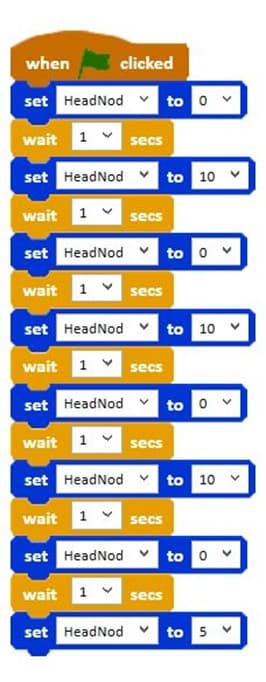
Write a program to make Picoh nod its head up and down. File, Save As - headnod
Write a program to make Picoh's pupils look from left to right. File, Save As - eyesleft
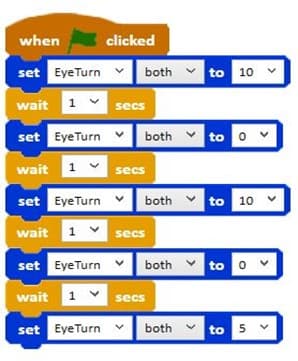
Write a program to make Picoh's pupils look up and down. File, Save As - eyesup
Extension
Experiment to write a sequence to make other parts of Picoh move.
Plenary
Look at examples of the children's coding. How did you find today's lesson? (Thumbs up, down, middle).
Questions:
- Were they successful?
- Did they need to debug their code?
- How many tasks did they complete?

Key Points
- Picoh has three motors, controlled by `set [motor] to [value]` instructions.
- Motor positions run from 0 to 10, with 5 as the middle position.
- `when green flag clicked` (Events palette) starts a sequence.
- Without `wait` blocks the motors only reach the last position in a sequence.
- `wait` (Control palette) gives the motors time to move between positions.
- Debugging means comparing what Picoh does with what you intended, then changing one thing at a time.
Need Help?
If you're stuck on any part of this lesson, check out these resources: