Learning Intention
- I can work with two variables
Introduction
What did we learn to do last week? (We learnt how to use a say instruction to speak the variable 'Count' and we completed some additional counting challenges using variables.) Today we are going to continue with our work on variables. What is a variable? We will be creating some new variables to count Ohbot's movements. This will link up with the movement tasks we completed in Year 3 and all the work we have covered on the variable 'Count' in Year 4.
Teacher Input
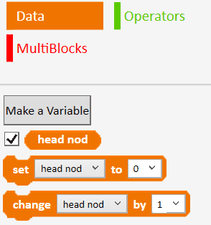
We are now going to use Make a Variable to create a variable called 'head nod'. This variable will be used to count the number of times Ohbot moves its head up and down in a task. Remember to have the tick next to 'head nod' on the Data palette to watch the counting.
If we use a repeat instruction with a count of 2, how many times will Ohbot nod? (2). Therefore, the 'head nod' count will go up to two. If we use a count of 10, how many times will Ohbot nod? (10). Therefore, the 'head nod' count will go up to 10.
Activities
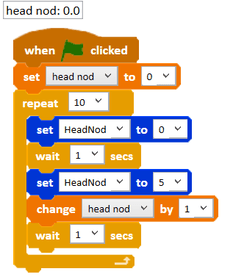
Can you write some code to make Ohbot count the number of times it nods its head? You can explore the code by changing the number of repeats. File, Save As - 'count head nod'.
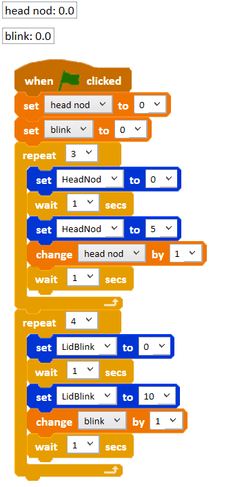
Can you write some code to make Ohbot count the number of times it blinks? File, Save As - 'count blink'.
Extension
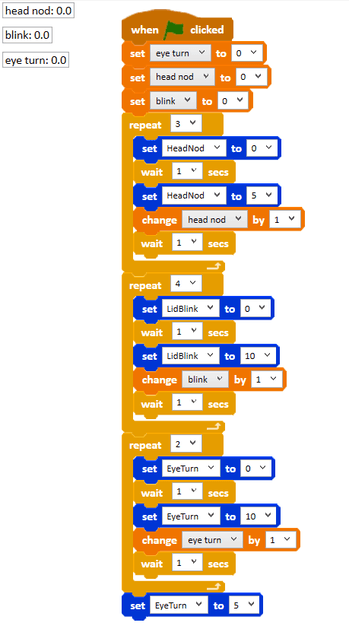
Can you make three variables for Ohbot's keep fit routine? Can you write a script to make Ohbot count the number of times it nods its head, shakes its head and looks up and down with its eyes? File, Save As - 'count keep fit'.
Plenary
Encourage children to share their programs with the class and discuss ones that don't work, work partially or have used a different algorithm to reach the same outcome. Encourage children to talk through how they work block by block and work as a class to debug a program to improve it.
Key Points
- Use Make a Variable on the Data palette to create your own named variables.
- A program can track several variables at the same time.
- Name variables after what they count (e.g. `head nod`, `blink`) to keep code readable.
- A `repeat` count determines how far the matching counter variable will climb.
- Tick a variable on the Data palette to watch its value change as the program runs.
Need Help?
If you're stuck on any part of this lesson, check out these resources: