Learning Intention
- I can test and debug my programs
Introduction
This week we will be testing all the programs we have written by running them on Picoh the robot. If the programs do not make sense, Picoh will not work. If this is the case you need to debug the program and test it again until Picoh performs the moves you intended.
Teacher Input
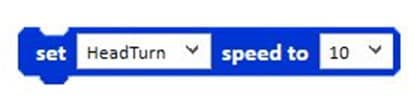
There are some differences between using the simulator in the Picoh program and using a physical robot. On the Motion palette there's an instruction we have not yet used because it only applies to the physical robot. Which instruction do you think it is? (`set speed to`.)
The simulator works at a constant speed. However, the motors on the robot take some time to move. This instruction allows you to adjust the speed of the motor. Picoh has 3 motors, and like all Picoh instructions the value you can input ranges between 0 and 10. As Picoh needs more time to complete a move using a physical robot, you may need to increase the wait times to allow it to finish a move before it starts the next one, particularly when using head nod and head turn.
Divide the class into equal sized groups and send them to the workstations where Picoh has been set up. Children take it in turns to log on and run 4 or 5 of the programs they have written this half term. Do the programs work? Can they debug the program to fix it? Remind them of the need to take turns.

Key Points
- The simulator runs at a constant speed; a physical robot's motors take real time to move.
- `set speed to` (Motion palette) only affects the physical robot.
- Physical robots often need longer `wait` times than the simulator.
- Test, compare with what you intended, then change one thing at a time.
Need Help?
If you're stuck on any part of this lesson, check out these resources: